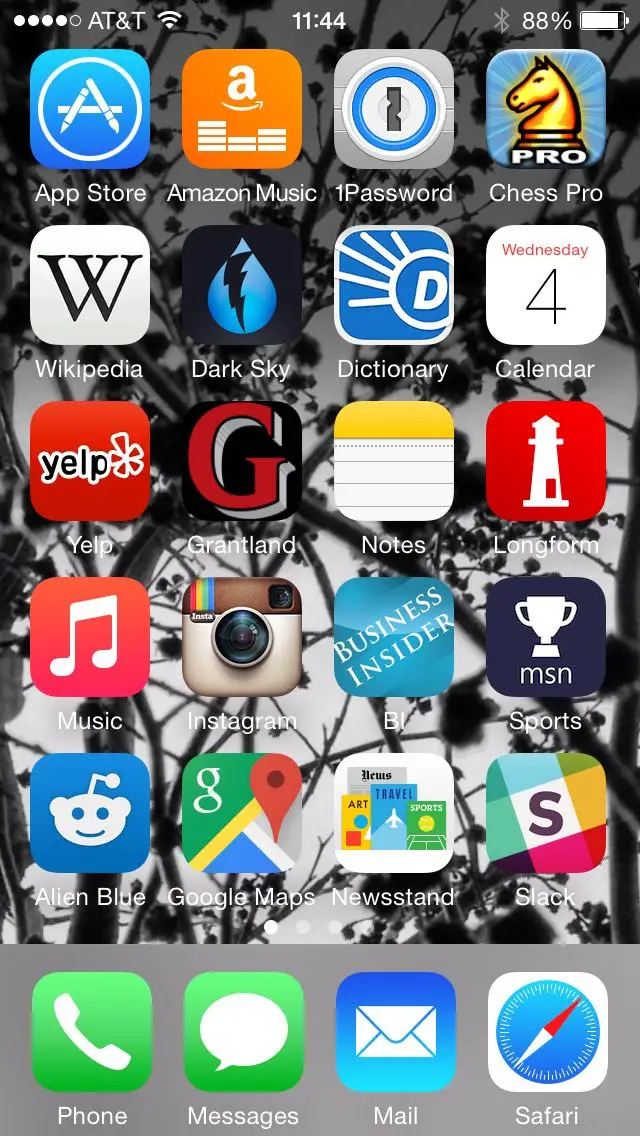
Have you ever searched for an Apps on My Phone but couldn’t remember where you put it? Maybe you downloaded an app months ago and now can’t find it, or your home screen is filled with icons you rarely use. Finding All Apps on My Phone is a common need, especially when you have dozens of apps installed.
The good news is that both Android phones and iPhones offer simple ways to view your apps. You can search for installed applications, check which ones take up storage, find hidden apps, and remove programs you no longer need.
This guide explains how to see all apps on your phone, with practical instructions for Android and iPhone users. It also covers what to do when an app is missing, how to organize your screen, and how to avoid deleting something important.
What Does “All Apps on My Phone” Mean?
The phrase “All Apps on My Phone” usually refers to the complete list of applications installed on your smartphone.
These may include:
- Social media apps such as WhatsApp, Facebook, and Instagram.
- Messaging and communication apps.
- Games and entertainment apps.
- Banking and shopping applications.
- Camera, photo editing, and video tools.
- System apps that help your phone function.
- Apps downloaded from the Google Play Store or Apple App Store.
Your home screen does not always show every installed app. Some apps may be placed in folders, hidden from the home screen, or accessible only through the app drawer or App Library.
The key difference: An app icon is not the same as the complete list of installed applications.
How to See All Apps on My Phone
The steps depend on whether you use Android or iPhone. Start with the instructions for your device.
1. Find All Apps on an Android Phone


6
Most Android phones have an app drawer that contains your installed apps. The exact appearance may vary between Samsung, Google Pixel, Xiaomi, Oppo, Vivo, and other brands.
Method 1: Open the App Drawer
- Unlock your Android phone.
- Go to the home screen.
- Swipe upward from the bottom of the screen.
- You should see a list of apps.
- Scroll through the list or use the search bar to find a specific app.
On some Android phones, the app drawer opens by tapping an Apps button instead of swiping up.
If you don’t see an app drawer, try swiping up from the bottom of the home screen. If that doesn’t work, your phone may use a different home screen layout.
Method 2: Use the Phone’s Settings
This is useful when you want to see installed applications and manage them.
- Open Settings.
- Tap Apps, Apps & notifications, or a similar option.
- Select See all apps, App management, or Manage apps, depending on your phone.
- Browse the list of applications.
You may be able to view app permissions, storage usage, battery activity, and uninstall options from this screen.
Method 3: Search for an App
If you remember the name of an app, searching is often faster than scrolling.
- Open your app drawer.
- Tap the search bar.
- Type the app’s name.
- Tap the matching result to open it.
For example, searching for “WhatsApp” can help you locate the app without checking every icon.
2. Find All Apps on an iPhone


6
iPhones use the App Library to organize installed apps. You can also search for apps through Spotlight.
Method 1: Open the App Library
- Unlock your iPhone.
- Swipe left past all your home screen pages.
- Continue swiping until you reach the App Library.
- Browse the categories or use the search field.
- Tap an app to open it.
The App Library automatically organizes apps into categories. You may see groups for social media, entertainment, utilities, and other types of applications.
Method 2: Use Spotlight Search
Spotlight is a quick way to find an app.
- Swipe down from the middle of the home screen.
- Type the name of the app.
- Tap the app from the search results.
You can also search from the App Library by tapping the search field.
Method 3: Check iPhone Storage
If you want a list of apps installed on your iPhone, including how much space they use:
- Open Settings.
- Tap General.
- Select iPhone Storage.
- Wait for the list to load.
- Browse the installed apps.
This screen is particularly useful when your phone is running out of storage. It shows apps and their storage usage, helping you decide what to keep or remove.
Android vs. iPhone: Where to Find Your Apps
| Feature | Android | iPhone |
|---|---|---|
| All apps | App drawer | App Library |
| Search apps | App drawer search | Spotlight or App Library |
| Installed app list | Settings → Apps | Settings → General → iPhone Storage |
| Organize apps | Folders, home screen, app drawer | Folders, home screen, App Library |
| Remove apps | Uninstall through Settings or app icon | Delete App through app icon or Settings |
The names of settings may differ depending on your phone model and software version.
Why You Can’t See All Apps on Your Home Screen
Many people assume that every installed app must appear on the home screen. That’s not how modern smartphones work.
Apps May Be Inside Folders
You might have a folder called “Tools,” “Social,” or “Shopping.” Open the folder to see the apps inside.
Apps May Be Removed From the Home Screen
On both Android and iPhone, an app can remain installed without showing on the home screen.
On iPhone, selecting “Remove from Home Screen” keeps the app in the App Library.
On Android, the behavior depends on the launcher. Removing an icon may only remove the shortcut, not the installed app.
Apps May Be Hidden
Some phones have a hidden apps feature. This can be used to keep certain apps out of the regular app drawer.
If you suspect an app is hidden, check your phone’s home screen or launcher settings for a hidden apps option.
Apps May Be Disabled
Android allows some apps to be disabled. A disabled app may not appear or function normally until it is enabled again.
How to Find Hidden Apps on My Phone
If an app is installed but you can’t find it, try these steps.
On Android
- Open the app drawer and search for the app.
- Open Settings → Apps and check the installed apps list.
- Look for a hidden apps setting in your home screen or launcher settings.
- Check whether the app has been disabled.
- Search the Google Play Store for the app’s name.
If the app appears in Settings but not in your app drawer, it may be hidden, disabled, or affected by the phone’s launcher.
On iPhone
- Swipe left to reach the App Library.
- Search for the app.
- Check Settings → General → iPhone Storage.
- Look at hidden app settings if you use a supported iOS version.
- Check whether the app is installed or needs to be downloaded again.
Important: An app missing from your home screen is not necessarily deleted.
How to Organize All Apps on My Phone
Once you’ve found your apps, organizing them can make your phone much easier to use.
1. Create Folders
Group similar apps together.
Examples:
- Social: WhatsApp, Instagram, Facebook.
- Work: Gmail, Google Drive, Microsoft Teams.
- Shopping: Daraz, shopping apps, payment apps.
- Entertainment: YouTube, Netflix, music apps.
- Tools: Calculator, scanner, file manager.
Folders reduce clutter and make related apps easier to find.
2. Keep Frequently Used Apps on the Home Screen
Place the apps you use every day where you can reach them quickly.
For example, you might keep:
- Phone.
- Messages.
- WhatsApp.
- Camera.
- Browser.
There’s no need to fill every home screen page with apps you rarely open.
3. Use Search Instead of Scrolling
If your phone has many apps, searching by name can save time.
This is especially helpful when you remember the app but not its location.
4. Remove Unused Shortcuts
An app shortcut can clutter your home screen even when the app itself is useful. Removing the shortcut is different from uninstalling the app.
Before deleting anything, check whether you’re removing just the icon or the complete application.
How to Delete Apps You Don’t Need
Removing unused apps can help reduce clutter and free storage, although the amount of space recovered depends on the app.
Android
- Open Settings.
- Tap Apps or App management.
- Select the app.
- Tap Uninstall, if available.
- Confirm the removal.
You can also long-press an app icon and choose Uninstall on many Android phones.
iPhone
- Find the app on your home screen or in the App Library.
- Press and hold the app icon.
- Tap Remove App.
- Select Delete App.
- Confirm.
You can also remove apps from iPhone Storage settings.
Before You Delete an App
Check these things first:
- Do you need the app for work, school, or banking?
- Is important data stored only inside the app?
- Will you need to sign in again after reinstalling?
- Is the app connected to a paid subscription?
- Is it a system app that your phone needs?
Deleting an app does not automatically cancel every subscription associated with it. Review subscriptions separately when necessary.
How to Check Which Apps Use the Most Storage
If your phone is full, finding the largest apps is a good starting point.
Android
Open:
Settings → Apps → Select an app → Storage
Some Android phones also provide a storage overview through Settings → Storage.
iPhone
Open:
Settings → General → iPhone Storage
You can view apps by their storage usage and decide whether to delete or offload them.
What Takes Up Space?
An app’s storage may include:
- The original app.
- Downloaded videos or music.
- Cached files.
- Photos and documents stored inside the app.
- Other app data.
For example, a video app may use much more storage after downloading offline content.
Practical tip: Check the largest apps first instead of deleting random applications.
Common Problems When Looking for All Apps on My Phone
Problem 1: The App Is Installed but Missing
Try searching in the app drawer or App Library. If it still doesn’t appear, check Settings → Apps on Android or iPhone Storage on iPhone.
Problem 2: The App Icon Disappeared
The icon may have been removed from the home screen while the app remains installed.
Problem 3: The App Won’t Open
Possible causes include:
- The app is disabled.
- The app needs an update.
- Your phone has insufficient storage.
- The app is incompatible with your software version.
- The app has crashed.
Try restarting your phone and checking for updates.
Problem 4: You Can’t Uninstall an App
Some Android system apps cannot be removed normally. They may offer a Disable option instead.
On iPhone, some built-in Apple apps can be deleted, while others have restrictions.
Problem 5: An App Was Accidentally Deleted
Check your app store’s installed or previously downloaded apps. You may be able to reinstall it.
Expert Tips for Managing Your Phone Apps
Keep Your Phone Updated
Operating system updates can improve compatibility and fix app-related issues. Update your phone through its official settings.
Review Apps Regularly
Every few months, look through your installed apps. Remove programs you no longer use, but avoid deleting apps just because you don’t recognize the name.
Be Careful With Unknown Apps
If an unfamiliar app is installed, check its name, developer, permissions, and purpose before deciding what to do.
Avoid installing apps from unreliable sources. On Android, be especially careful with APK files downloaded from unknown websites.
Check App Permissions
An app may request access to your camera, microphone, contacts, location, or files.
Review permissions in your phone settings and remove access that isn’t needed, where supported.
Don’t Use Random Cleaner Apps
Many phones already include storage management tools. A third-party cleaner app isn’t automatically necessary, and some may add advertisements or request broad permissions.
Use built-in storage settings first.
Frequently Asked Questions
1. How do I see all apps on my phone?
On Android, swipe up from the home screen to open the app drawer. On iPhone, swipe left past your home screen pages to reach the App Library.
2. Why can’t I see all apps on my home screen?
Some apps may be inside folders, removed from the home screen, hidden, or disabled. Check the app drawer, App Library, or installed apps settings.
3. How do I find all apps on my phone by name?
Use the app drawer search on Android, or Spotlight Search and App Library search on iPhone. Type the app’s name to locate it.
4. Can I see every installed app in Settings?
Yes, Android’s Apps settings provide an installed app list. On iPhone, iPhone Storage provides a list of apps and their storage usage.
5. How do I find hidden apps on my phone?
Search the app drawer or App Library first. Then check installed apps in Settings. If your phone supports hidden apps, review the launcher or app settings.
6. Does deleting an app free storage?
Usually, deleting an app removes its installed files and may free storage. The amount depends on the app and its stored data.
7. Can I restore an app after deleting it?
Often, yes. Search for it in the Google Play Store or Apple App Store and reinstall it. You may need to sign in again.
8. How do I find apps I rarely use?
Open your phone’s app list or storage settings and review the applications. Some phones offer unused app suggestions or storage management tools.
Final Thoughts
Finding all apps on my phone doesn’t have to be difficult. Android users can start with the app drawer or Settings → Apps, while iPhone users can use the App Library, Spotlight Search, or iPhone Storage.
The best way to manage your apps is to know where they are, understand which ones you use, and remove only what you no longer need. A little organization can make your phone faster to navigate and easier to manage.
Whether you’re looking for a missing app, checking storage, or cleaning up your home screen, the built-in tools on your phone are usually enough to get the job done.